
Working in chats
A chat is where you actually work in Paddock — one conversation with an agent, streamed live and kept forever. This guide is the practical companion to the Chats are sessions concept: that page explains what a chat is (a persisted, resumable Claude Code session); this one walks through how you work in one day to day.
By the end you’ll know how to start a chat, tell keeper chats from one-off (scratch) ones, pick a conversation back up from any device, drive the composer and its message queue, Stop a running turn, fork or rewind from any message, and keep a growing sidebar legible with unread dots, stars, the per-chat context + cost meter, search, and archive.
Start a chat
Section titled “Start a chat”Open a project and you’re already in a chat — the composer at the bottom is waiting for your first message. To begin a fresh conversation in the same project, click New chat at the top of the chat list. Type a message and press Enter; that first turn is what brings the chat to life.
Under the hood there’s no “create chat” step. Sending the first message with no session id yet is what mints one: Claude Code generates the session id mid-turn, and Paddock attributes that running session to the project the instant the id streams back — so the new chat shows up in the sidebar while the first turn is still running, not only after it finishes. You never wait for a round-trip to see your chat appear.
Keeper chats vs one-off (scratch) chats
Section titled “Keeper chats vs one-off (scratch) chats”Paddock has two kinds of chat, and the difference is where the agent works:
- A keeper chat belongs to a project. It runs under that project’s keeper
agent, whose working directory is the project directory (or, for a
repo-backed project, the checkout inside it). Everything the keeper does —
notes, edits, commits — happens in that project. After a successful keeper
turn, a sweep keeps the project’s
OVERVIEW.mdandCHANGELOG.mdcurated — and on instances where the operator has enabled it, the keeper is also given Paddock’s self-management tools. - A one-off (scratch) chat is deliberately not tied to a project — a quick place to think out loud. It runs under a single global scratch agent whose working directory is a separate scratch folder, not any project. Scratch chats skip those project-only extras — no curation sweep runs after them, and the self-management tools are never injected.
Both kinds are ordinary Claude Code sessions with the same default model and the same resumability — the split is scope, not power.
Resume from anywhere
Section titled “Resume from anywhere”A chat is a session persisted on disk, so you can leave and come back — from the same tab, a fresh reload, or an entirely different device — and pick up exactly where you left off. Every later message on a chat resumes that same session rather than starting a new one.
Paddock survives interruptions at three levels:
- Reload or a new device. The client re-fetches the chat’s transcript from the server and re-renders it. Because the transcript lives on disk and your per-user read state is stored server-side, the same chat — and which replies you’ve already seen — appears wherever you log in.
- Mid-turn reconnect. If your connection drops while a turn is streaming, the client re-attaches over the WebSocket and asks the server to replay the frames it missed, so a live turn keeps streaming to you without restarting. If you were away long enough that the buffer aged out, it quietly re-hydrates from the transcript instead.
- Server restart. Transcripts and all the per-chat sidecar state live on disk, so chats — and their archived/unread/queued state — survive a restart of the Paddock process itself.
For the mechanics (how the transcript maps to a working directory, and how forking copies a session), see Chats are sessions.
The composer
Section titled “The composer”The composer is the box at the bottom of every chat. A few things worth knowing:
- Enter sends; Shift+Enter makes a newline. Press Enter to send the current message. Hold Shift and press Enter to insert a line break and keep typing — useful for multi-line prompts. (The hint under the composer reminds you which is which, and swaps “send” for “queue” while a turn is running — see below.)
- Your draft is saved as you type. Whatever you’ve typed but not yet sent is persisted per chat in your browser’s local storage. Switch chats, reload the tab, or come back tomorrow and your unsent draft is still there; sending clears it. Each chat keeps its own draft — including a not-yet-started new chat.
- Attach files and images. The paperclip button (project chats only) lets you send files and images to the keeper — pick, drag-drop, or paste them in. See Sending files & images.
Type while a turn is running: the queue
Section titled “Type while a turn is running: the queue”You don’t have to wait for the agent to finish before writing your next message. If you type and press Enter while a turn is still streaming, Paddock queues the message instead of sending it — and auto-sends it the moment the current turn completes successfully. A queued-message bar appears above the composer showing the text you’ve lined up:
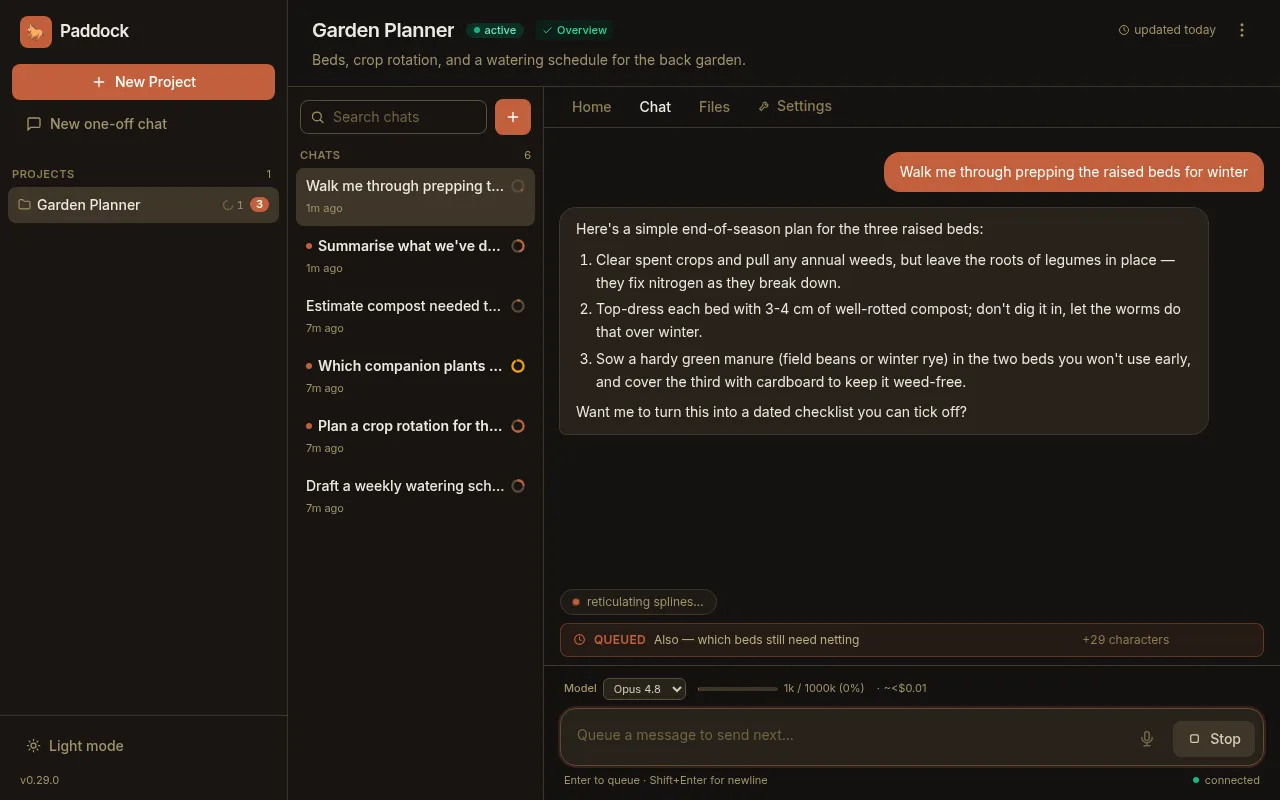
A few specifics worth knowing, because the queue is server-side, not just a browser convenience:
- It’s a single slot, and it’s durable. There’s one queued message per chat. If you queue a second message before the first has sent, Paddock appends it to the pending one (on a new line) rather than replacing it or building up a list. Because the queue is persisted on the server, a queued message survives a socket disconnect or even a reload — it isn’t lost with your tab.
- The pill counts hidden characters. When your queued message spans more than
one line, the bar shows a
+N characterspill for the text beyond the first line, so you can see there’s more queued than the preview shows. - A Stopped or failed turn holds the queue. The follow-up only auto-sends after a turn that completes successfully. If you Stop the turn (or it fails), your queued message stays put rather than firing — so hitting Stop never accidentally launches the thing you were still deciding about.
Stop a running turn
Section titled “Stop a running turn”While a turn is streaming, the send button becomes a Stop button. Click it to interrupt the agent — Paddock cancels the running job. As noted above, stopping a turn holds any queued follow-up rather than sending it.
Hover a message: time, context, fork and rewind
Section titled “Hover a message: time, context, fork and rewind”Hover any message in the transcript and a small rail fades in at its top-right. It carries two readouts and two actions:
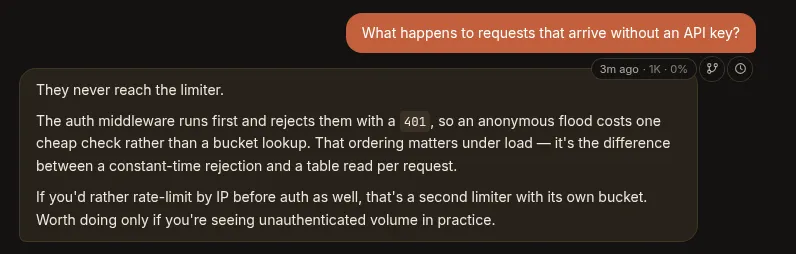
- When it happened. A relative age (
3m ago,2d ago); hover the chip itself for the absolute local date and time. - How full the window was at that point. The token count and percentage shown are a point-in-time read for that message, not a running total — so on a long chat you can see where the context window actually filled up rather than only what it totals now.
- Fork a new chat from here. Copies the transcript up to that message into a new chat and drops you into it. The original is untouched — this is how you try a second approach from the moment things diverged.
- Revert conversation back to here. Truncates this chat in place, keeping its session id (so the URL and lineage survive). The confirm counts the messages and tool calls about to disappear, and the discarded tail is backed up rather than destroyed.
The rail appears on your and the keeper’s messages once a turn has settled — not on tool blocks, notices, or the turn currently streaming — and it’s a project-chat feature; one-off chats don’t have it.
Keep a growing chat list legible
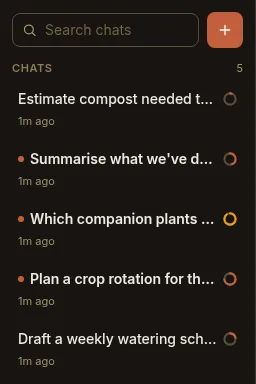
Section titled “Keep a growing chat list legible”A busy project accumulates chats fast. The sidebar’s chat list has several affordances that keep it readable:
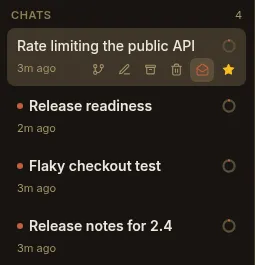
Hovering a chat row reveals its six actions, tucked beside the timestamp: fork, rename, archive, delete, mark unread, and star.
Unread dots — and marking a chat unread
Section titled “Unread dots — and marking a chat unread”When a chat you’re not currently looking at finishes a turn, Paddock marks it unread — a small accent dot next to the chat name, with the name in a bolder weight. Opening (focusing) the chat clears it. Read state is tracked server-side per user, so which replies you’ve seen follows you across devices rather than living only in one browser. (When Paddock runs without real user identity, read state falls back to a single shared bucket.)
You can also raise that cue yourself. The envelope action on a chat row marks it unread again — the email-client move for “I glanced at this at midnight, resurface it in the morning.” Opening or focusing the chat spends the flag, exactly as it would a real unread reply.
Unlike starring and archiving, which are shared — archive a chat and everyone using the instance sees it archived — the unread flag is yours, keyed to your user alongside your read state.
Nested chats — a fan-out reads as a tree
Section titled “Nested chats — a fan-out reads as a tree”A chat that another chat created is filed underneath it in the sidebar,
indented, with a twisty on the parent to fold the whole family away. A keeper
that spawns eight children no longer buries your other work under eight
top-level rows; it takes up one, with an 8 count pill when you collapse it.
- Everything is expanded by default. Nothing is hidden from you until you choose to fold it.
- Collapse state is per project and per browser, kept in local storage alongside your other layout preferences. Folding a noisy fan-out on your laptop deliberately doesn’t fold it on your phone.
- Indentation stops at four levels. Deeper chats still nest, sort and collapse correctly — they just stop marching rightwards, so a deep tree can’t squeeze the chat names into nothing.
- A nested chat drops its violet
spawnedbadge. Sitting under its parent already says another chat made it, more loudly than the chip did. The badge comes back if that chat is shown at the top level.
Which chats nest and which stay flat comes down to whether Paddock recorded a parent for them; Provenance has the full picture. The short version: chats a keeper spawned or forked nest; chats you started, chats a schedule or an event hook fired, and chats created by an external MCP client are roots.
Some chats surface at the top level even though they do have a parent — because the parent is in another project, or archived, or filtered out by your search. That’s deliberate: a chat whose parent isn’t on screen is promoted to a root rather than vanishing with it.
Stars — pin a chat to the top
Section titled “Stars — pin a chat to the top”Click the gold star at the right of a chat row and that chat floats to the top of its group. It’s the lightweight way to keep the conversation you’re living in (or the long-running job you’re waiting on) one click away.
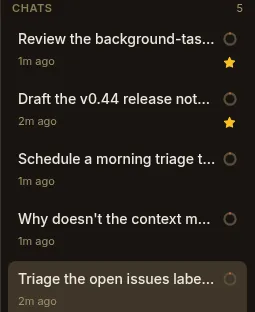
Starring is purely presentational and orthogonal to archiving: a starred chat sorts first among its siblings, so stars float to the top of the active list and the Archived section — and, now that chats nest, to the top of whatever group of siblings the chat belongs to rather than to the top of the whole list. A starred chat keeps its star visible at rest, rather than only on hover.
Below the stars, siblings sort by the most recent activity anywhere in their subtree, not by their own last message. A parent whose child is mid-turn rises with it, so an active family travels up the list as a unit instead of the parent sinking while its children work.
The context + cost meter
Section titled “The context + cost meter”Each chat carries a small context ring in the sidebar, and a fuller context + cost readout in the composer’s status row:
- Context shows how full the model’s context window is — the tokens from the
last completed turn as a percentage of that model’s context limit (1M tokens
for Opus, Fable, and Sonnet; 200K for Haiku). It reflects the last completed
turn, so it updates a beat behind an in-flight turn, and the ring turns amber
as you approach the top of the window. Before a chat’s first turn finishes
there’s nothing to measure, so it reads
context: —. - Cost shows the chat’s cumulative token usage and an estimated dollar cost so far, including tokens spent by any sub-agents the keeper spawned. The dollar figure is a ballpark at standard API list prices — a rough sense of scale, not a bill; if you run the agent on a Claude subscription it won’t match what you’re actually charged.
Search
Section titled “Search”The Search chats box at the top of the list filters the current project’s chats as you type — a case-insensitive match over each chat’s name and its first-message preview. It filters what’s already loaded (no server round-trip), so it’s instant, and it searches archived chats too.
A match drags its ancestors into view so you can see where it sits, which means some rows in a search result are scaffolding rather than hits. Search also temporarily overrides collapse — a match buried inside a folded family still shows — and your folded state comes back untouched when you clear the box.
Archive
Section titled “Archive”To file a finished chat away without deleting it, hover its row and click the Archive button. Archived chats drop out of the main list and collect under a separate, collapsible Archived section at the bottom of the sidebar. Archiving is purely presentational — the transcript is untouched, and an archived chat is still openable, resumable, and forkable; unarchive it any time to bring it back to the top of the list.
Archiving a parent doesn’t archive its children. The active list and the Archived section are two separate trees, so a parent you archive moves out on its own and its still-active children are promoted to top-level rows rather than following it or being hidden behind it.
Resize the columns
Section titled “Resize the columns”On a desktop-width screen both left-hand columns — the app side-nav and the per-project chat list — have a drag handle on their right edge. Drag it to set the width you want, double-click it to snap back to the default, or focus it and nudge with the arrow keys. Widths are clamped to sane bounds and remembered per browser in local storage, so a laptop and a desktop can each keep their own layout. (Below desktop width the columns become the off-canvas drawer instead, and the handles don’t apply.)
Next steps
Section titled “Next steps”- Chats are sessions — the concept behind persistence, resume, and forking.
- Keeper agents — the agents behind keeper and one-off chats.
- Creating & organizing projects — where keeper chats live, and how to promote a scratch chat.
- The sweeper — the post-turn curation that runs after keeper chats (and not scratch ones).